Day 7: Auto-Create Freelance Briefs from Trello Keywords (Gemini)
🧠 Project Name: Auto-create Freelance Briefs from Trello Keywords using Gemini API
🔧 What This Workflow Does:
This automation takes simple keywords from a Trello card, sends them directly to the Google Gemini generative AI model via an API call, and generates a detailed, ready-to-share freelance project brief in Google Docs.
✅ Tools Used:
- Make.com (for automation and workflow orchestration)
- Trello (to fetch input keywords - card description)
- Google Gemini API (Generative Language API) for AI brief generation
- Google Docs (to store the final brief)
Flow Overview ⚙️
This automation takes keywords from a Trello card, sends them to the Gemini generative AI model to create a detailed freelance brief, then parses and extracts the AI-generated text for further use or distribution.
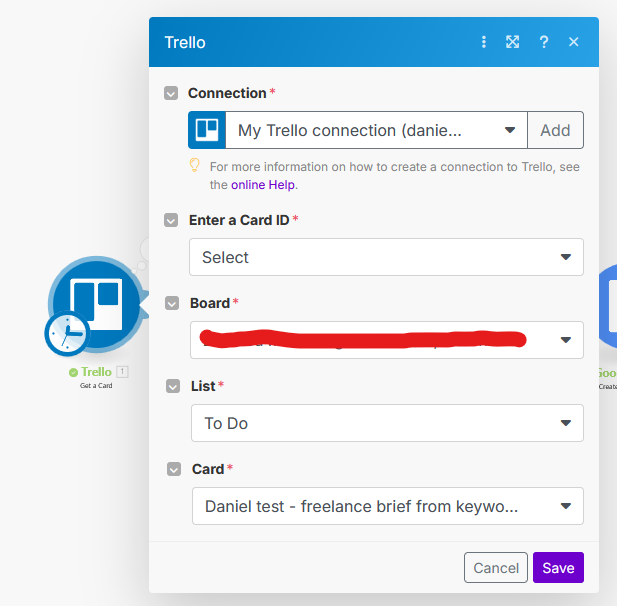
🔹 Step 1: Fetch Keywords from Trello Card
Use Make.com’s Trello Module (Get a Card) to retrieve a specific Trello card.
Extract the card’s description or relevant text field, which contains the keywords or brief input for the AI.
🔹 Step 2: Call Gemini API to Generate Brief
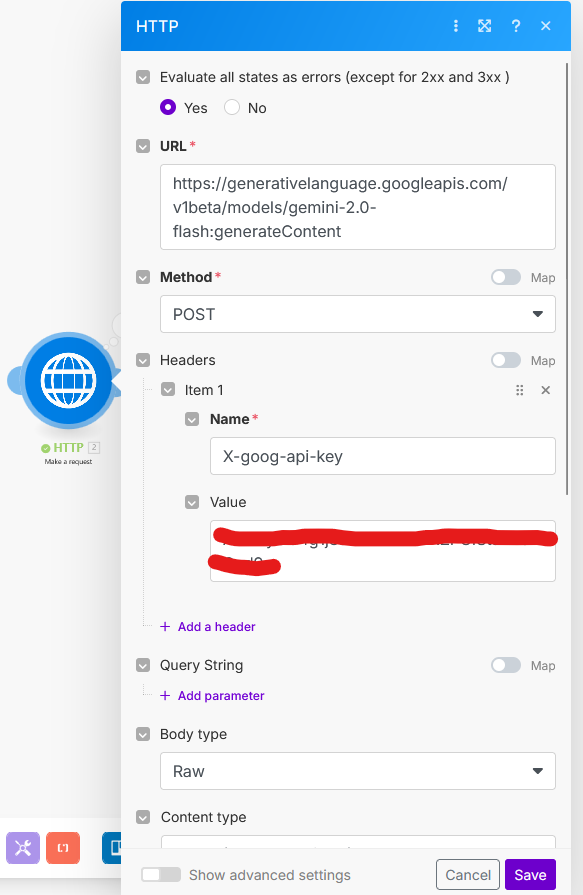
Use Make.com’s HTTP Module to send a POST request to the Gemini API endpoint: https://generativelanguage.googleapis.com/v1beta/models/gemini-2.0-flash:generateContent
Configuration:
- Headers: `Content-Type: application/json` and `X-goog-api-key: YOUR_GEMINI_API_KEY`
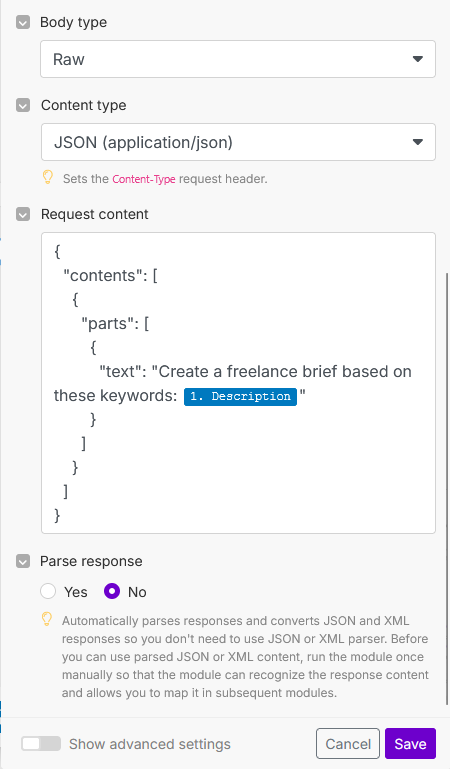
- Request Body: Format the Trello keywords inside the `contents.parts[0].text` field with a prompt, e.g., `"text": "Create a freelance brief based on these keywords: [Trello Card Content]"`
🔹 Step 3: Receive Raw JSON Response from Gemini
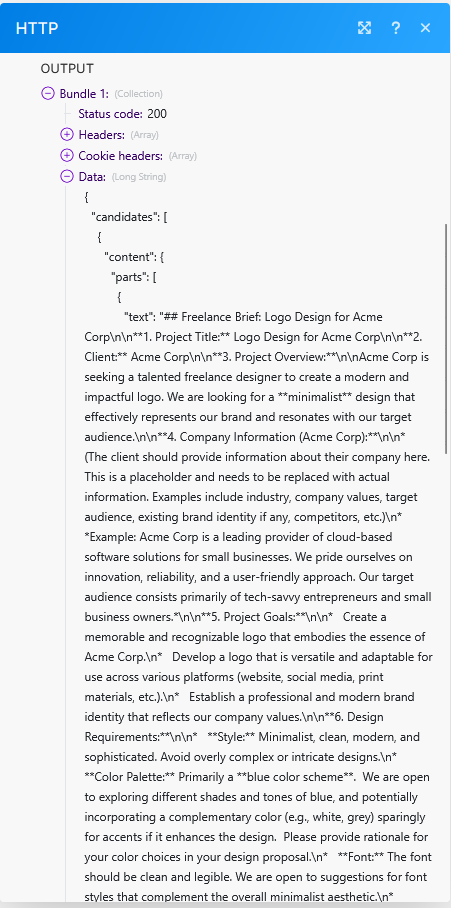
Gemini responds with a JSON object containing the generated content inside nested fields.
The key text is found under: `candidates[0].content.parts[0].text`
This raw JSON response is captured by the HTTP module’s output.
🔹 Step 4: Parse the JSON Response
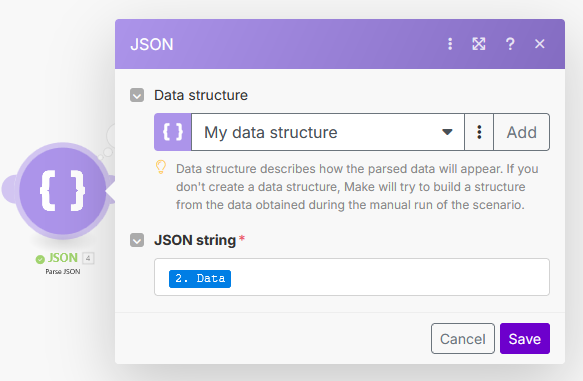
Insert a Parse JSON Module in Make.com.
Map the HTTP module’s raw response body as the JSON string input.
This converts the raw string into structured data fields accessible within Make.com, allowing you to easily pull out the clean brief text.
🔹 Step 5: Create/Update Google Docs Document
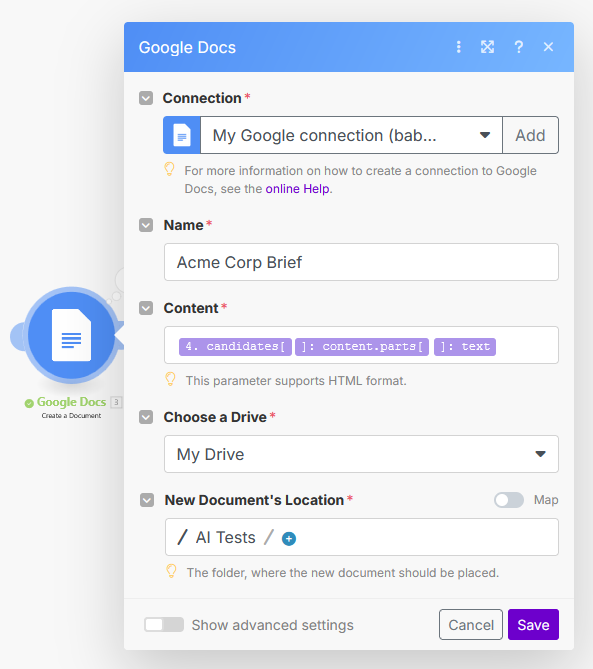
Use Make.com’s Google Docs Module to create a new document or update an existing one.
Insert the extracted brief text into the Google Doc content.
This makes the brief accessible in Google Drive for collaboration, editing, or sharing.
🎯 Final Output:
A fully detailed freelance brief generated in seconds, ready in your Google Drive.
*Here is the Google Docs link for the resulting brief: Google Docs Link