Day 4: Built an AI-Powered Daily Newsletter with n8n
🧠 Project Name: Built an AI-Powered Daily Newsletter with n8n
🔧 What This Workflow Does:
This workflow automatically fetches the top 3 marketing news articles from Google News every morning, summarizes them using AI, and then emails the concise newsletter directly to your inbox.
✅ Tools Used:
- n8n
- Gmail
Step-by-Step Tutorial 🗂️
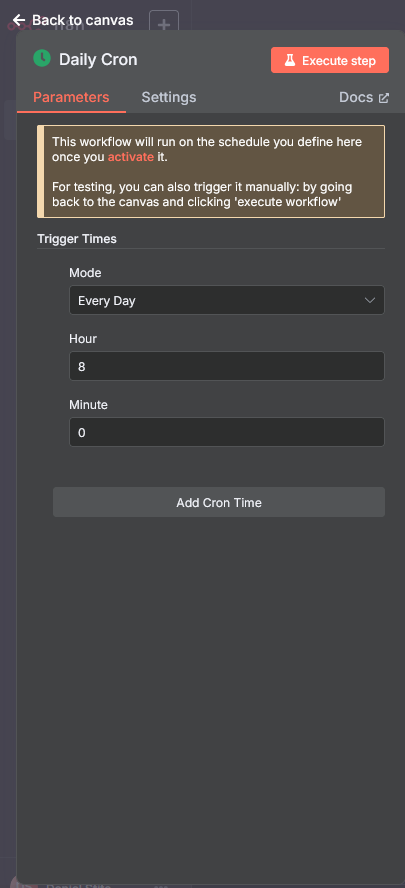
🔹 Step 1: Daily Cron (Trigger Node)
Go to n8n.io and create a new project. Add a new node called “Cron” (our trigger node).
What it does: Automatically triggers the workflow every day at 08:00 AM (completely customizable).
Why: To run the entire process daily without manual intervention, so you get fresh summaries every morning.
🔹 Step 2: Get Google News RSS
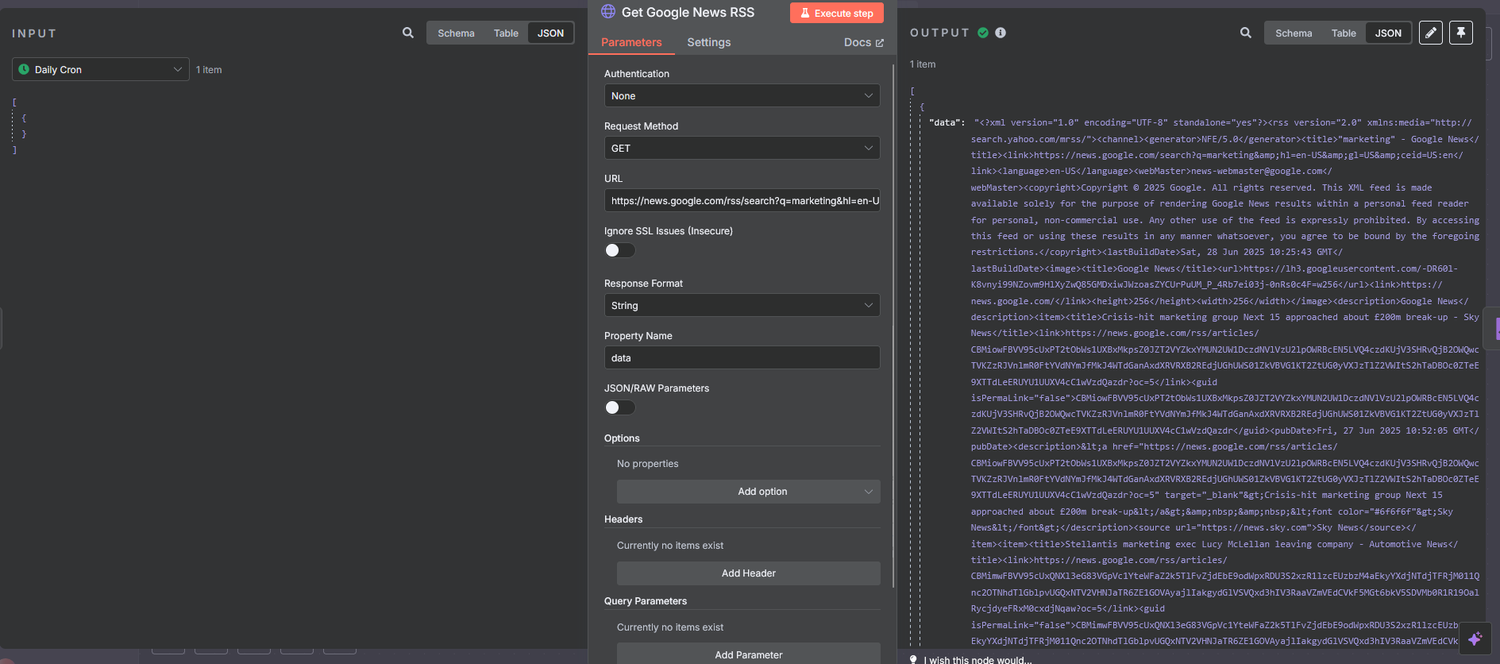
Select “Add Node” -> “HTTP Request”.
What it does: Fetches the latest news articles from Google News RSS feed about "marketing".
How: It makes a GET request to the RSS URL: Google News Marketing RSS.
Why: This gathers raw news data as XML for the topic you want to summarize.
🔹 Step 3: Parse RSS
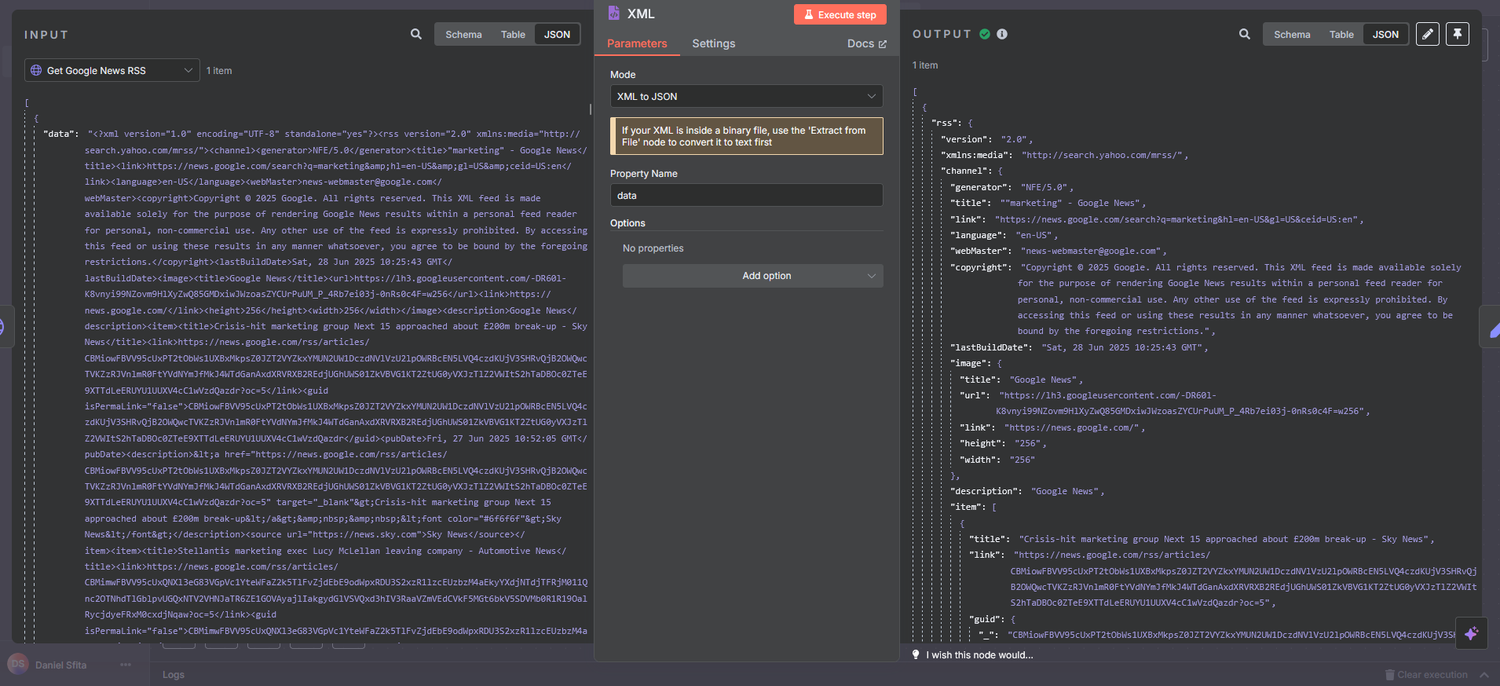
Select “Add Node” -> “Add XML”.
What it does: Extracts the list of news items from the RSS XML response.
How: Using the parameters, it extracts the `rss.channel.item` array from the response and stores it in items.
Why: To convert the XML feed into a JSON array of individual news articles for easy processing.
🔹 Step 4: Limit Top 3 Results
Add a new node→ “Edit Fields (Set)”.
What it does: Limits the number of news articles processed to the top 3.
Why: You might want to summarize just the most important or recent 3 articles daily, avoiding overload or hitting API limits.
🔹 Step 5: Format News Items (Function Node)
Add a new node→ “Function Node”.
What it does: For each of the top 3 news items, it formats them into a consistent string with: The news title, Description (if available), and Link to the article.
Why: To create a clean, readable text snippet for each news story, ready for summarization.
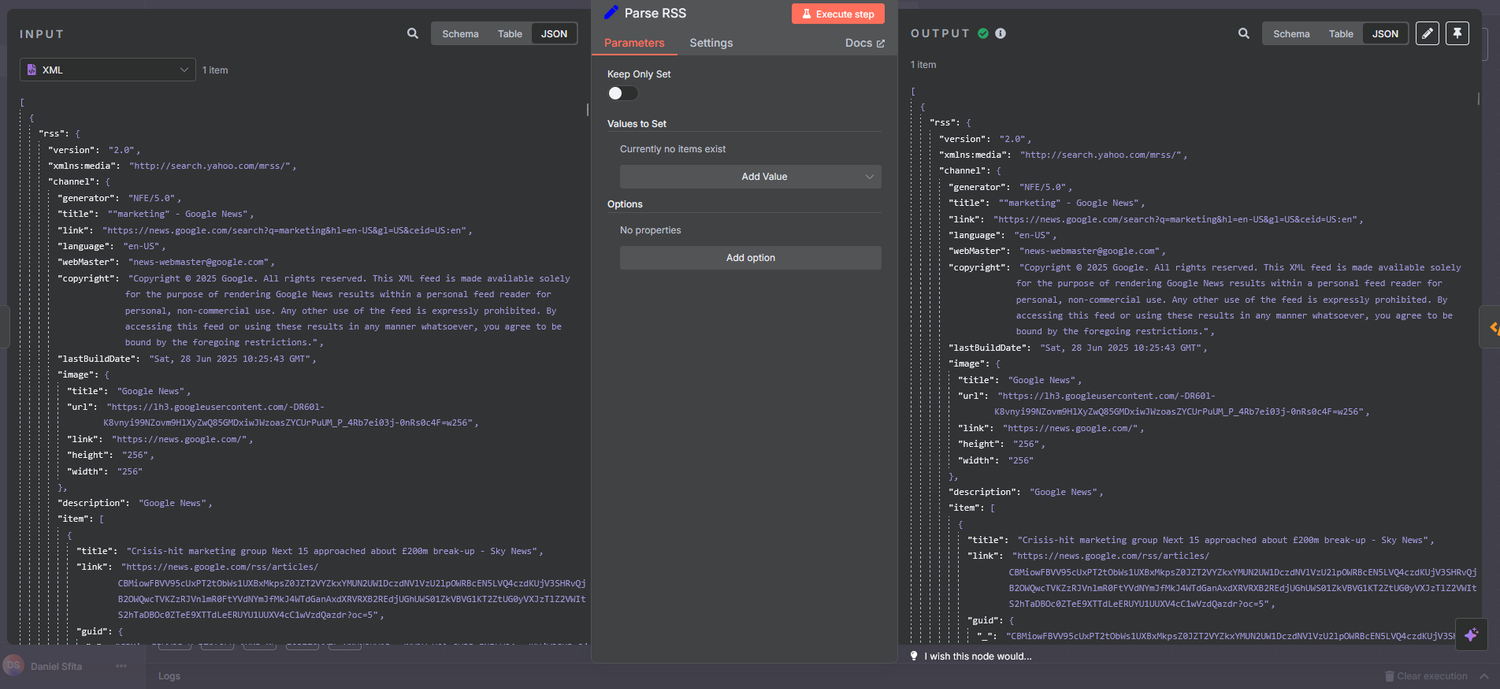
JSON code used in the Function Node:
const items = $input.all(); // all incoming items
// Extract news items array from the first item
const newsItems = items[0].json.rss.channel.item;

if (!newsItems || newsItems.length === 0) {
  return [{ json: { text: "No news items found" } }];
}

const formattedArticles = newsItems.map(article => {
  const title = article.title || "No title";
  const link = article.link || "#";
  const pubDate = article.pubDate ? new Date(article.pubDate).toLocaleDateString() : "No date";
  const source = article.source?._ || "Unknown source";
  return `🗞️ [${title}](${link})\nSource: ${source}\nDate: ${pubDate}`;
});

return [{ json: { text: formattedArticles.join("\n\n") } }];
🔹 Step 6: Combine News (Function Node)
Add a new node→ “Function Node”.
What it does: Joins all formatted news item texts into one single string separated by double line breaks (`\n\n`).
Why: The summarization API expects one big input text, so you combine the 3 articles into one chunk for summarization.
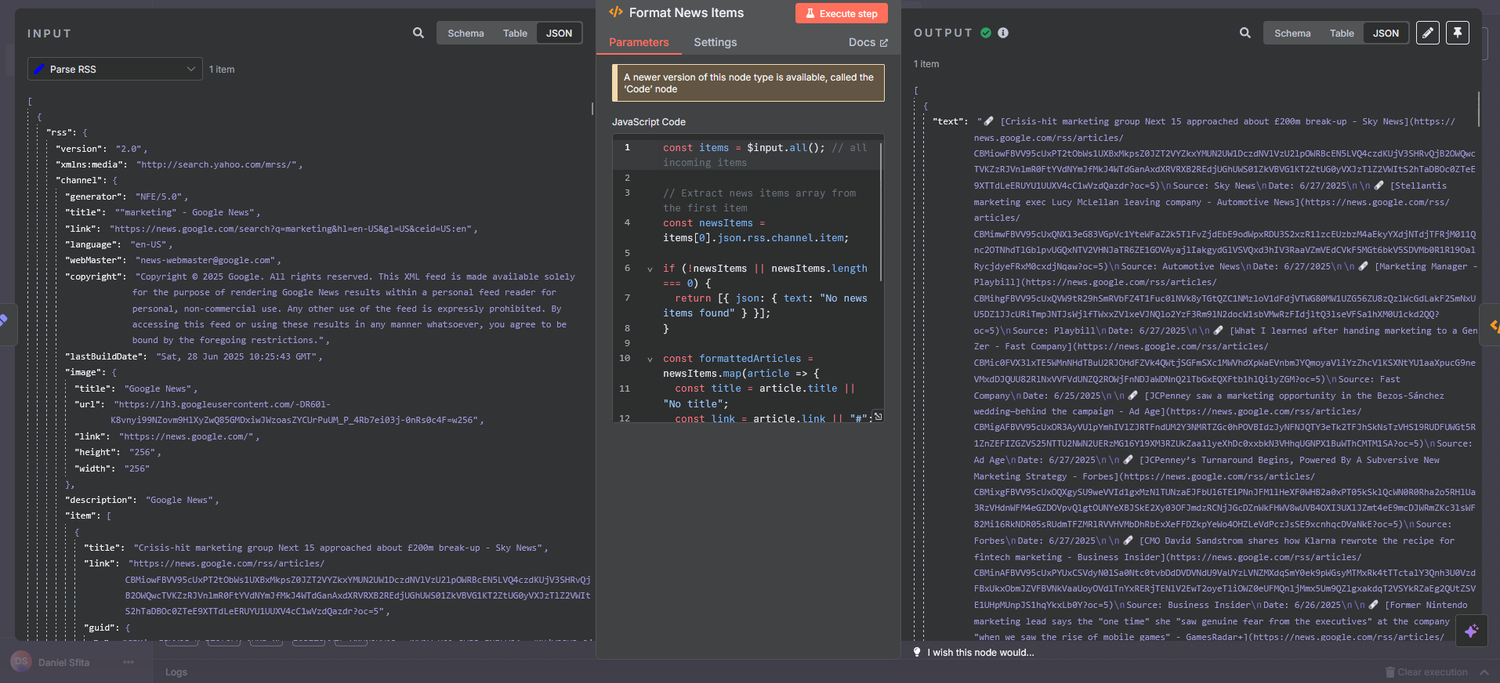
JSON code used in the Function Node:
const combined = items.map(i => i.json.text).join('\n\n');
🔹 Step 7: Call My AI Service
What it does: Sends a POST request to my custom summarization API endpoint (my local Flask app exposed via ngrok). This is completely customizable according to each person’s needs.
How:
- Sends JSON body with a prompt property containing: `"Summarize these 3 marketing news stories into a concise, engaging newsletter: \n\n{{$json.combinedNotes}}"`
- Your AI service responds with a summarized text.
Why: This is the heart of the flow — the AI condenses the combined news text into a concise newsletter summary.
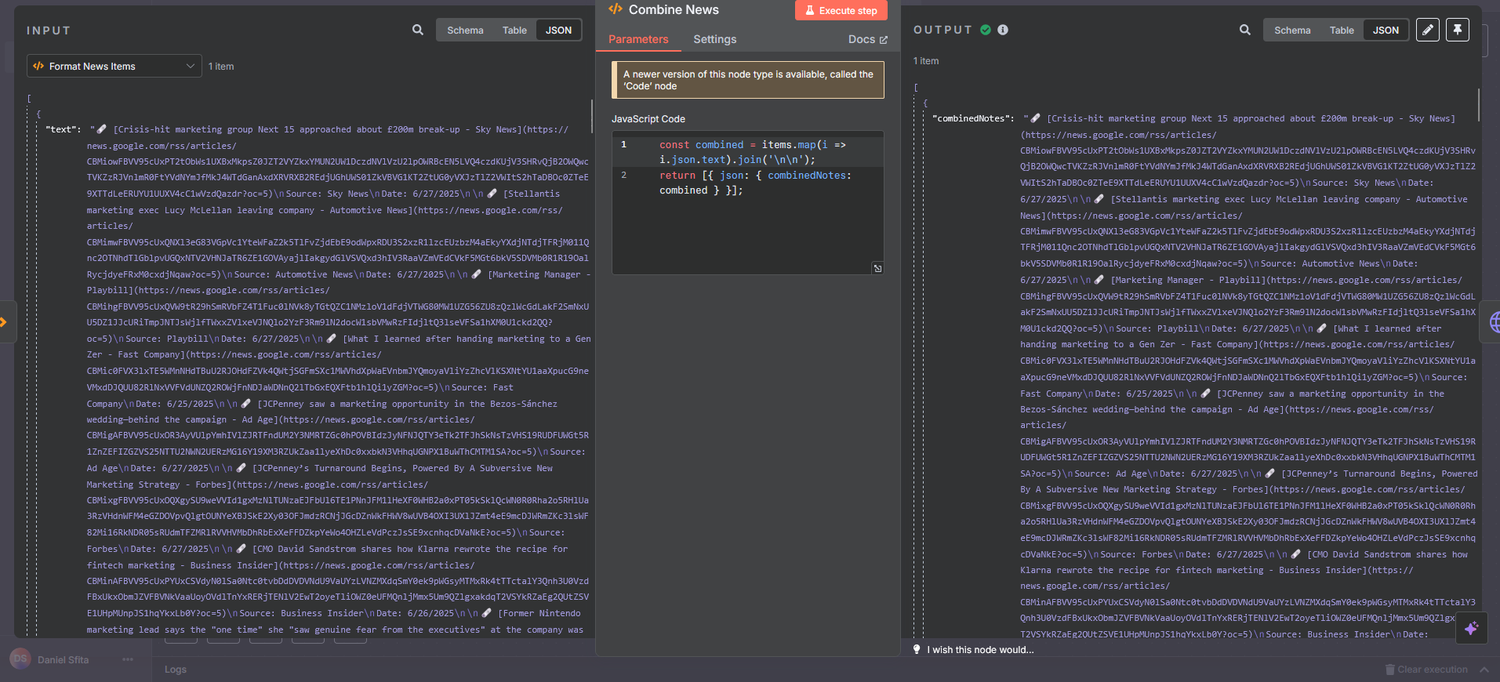
*Code used to map the combined news text into the request body:* `={{ $json["combinedNotes"] }}`
🔹 Step 8: Send Email (HTTP Request)
Add a new node→ “HTTP Request” (using Gmail credentials).
What it does: Sends an email with the summarized newsletter content.
How:
- Uses your Gmail account credentials.
- From and to your email address (can be the same or different).
- Subject: `"📰 Daily Marketing News Summary"`.
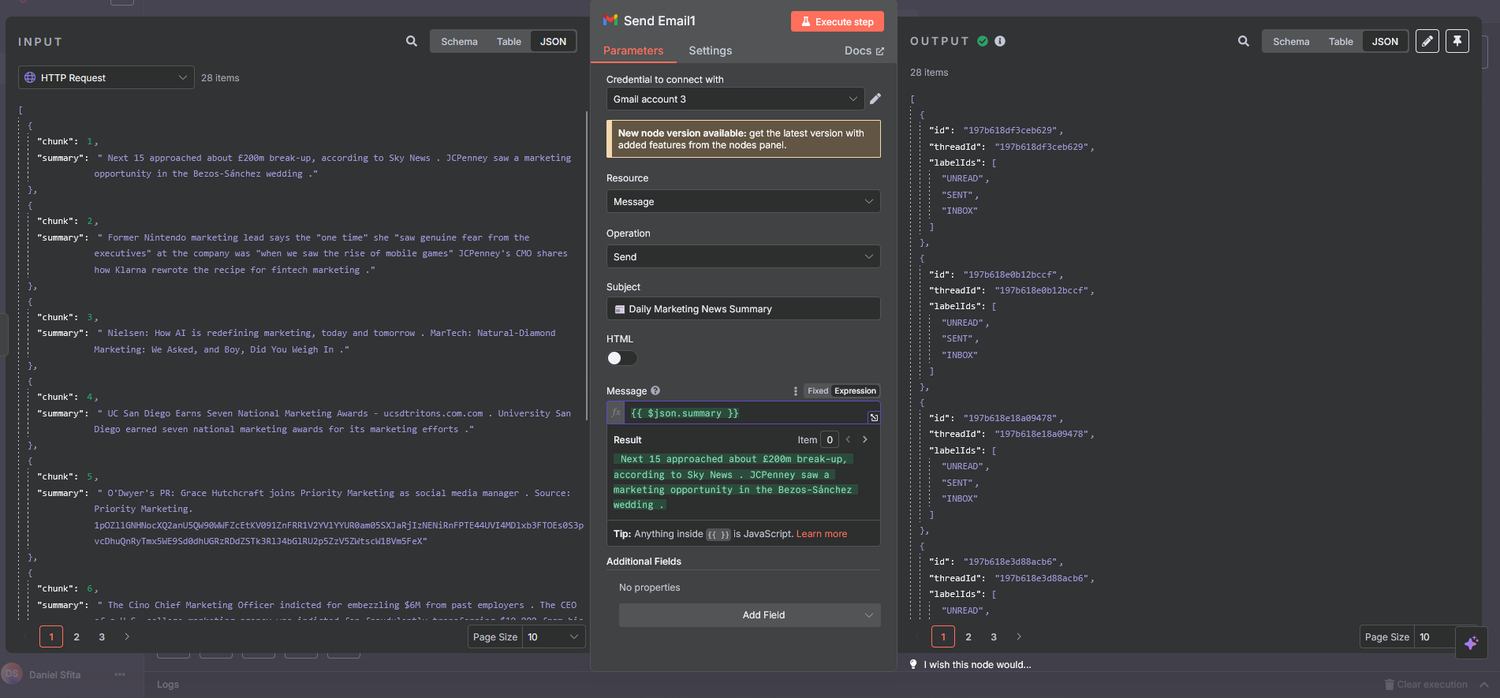
- Email body uses dynamic content: `{{$json.summary || $json.result || $json.generated_text || JSON.stringify($json)}}` — it picks whichever field has the summary returned by your AI service.
Why: To deliver the summarized marketing news newsletter directly to your inbox every morning.
*Upon request, I can send the whole project file to anyone that is interested. Just contact me through the contact form.*