Day 1: How to Auto-Generate LinkedIn Posts using AI
🧠 Project Name: Automated LinkedIn Post Generator with AI, Google Sheets & Make.com
What This Workflow Does:
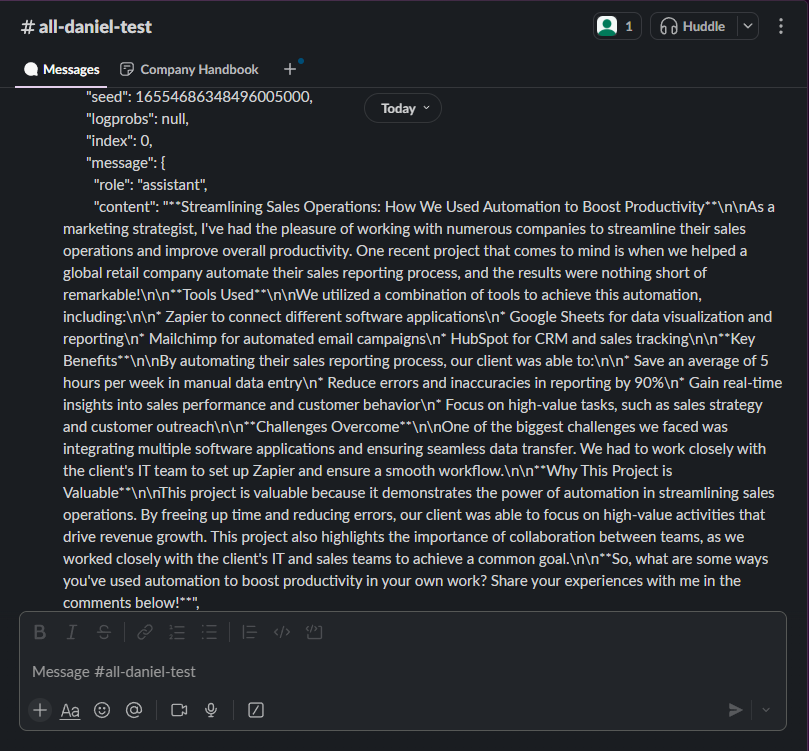
Generates weekly LinkedIn post drafts using AI, based on your voice and a list of projects stored in Google Sheets, and sends the generated post to Slack for review.
✅ Tools Used:
- Google Sheets (Content database)
- Make.com (Automation tool)
- Together.ai (for LLaMA-3 8B chat-hf model)
- Slack (to receive drafts)
⚡ Interactive flow
Click a node to see its config · Press Run to simulate
1
Google Sheets
Watch Rows
2
Together.ai
LLaMA-3 via HTTP
3
Slack
Send via Webhook
↑ Click any node above to see its setup
Step-by-Step Tutorial ⚙️
🔹 Step 1: Prepare Google Sheets
Create a Google Sheet with the following columns: Topic - include a list of topics the AI can pull from randomly.
Here is what I used: Google Sheet Link
🔹 Step 2: Set Up Make.com Scenario
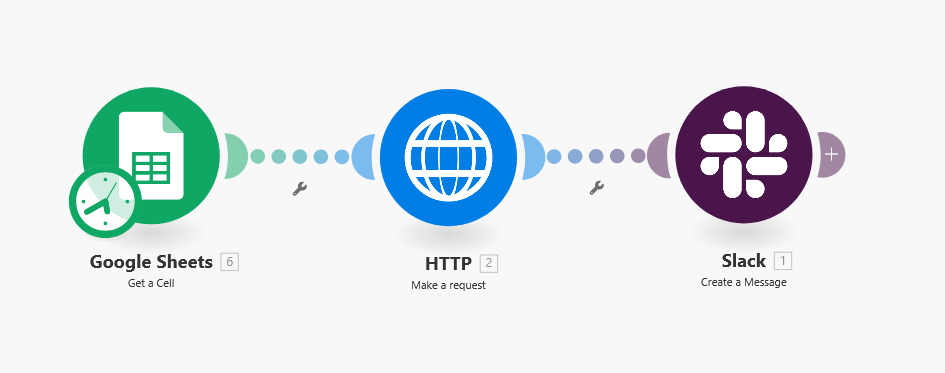
This scenario involves three main modules:
- Trigger Module (Google Sheets - Watch Rows):
- Connect to your Sheet.
- Choose the tab (e.g. "Topics/Post").
- Trigger: "When row is added or updated".
- Set a limit (e.g. "43").
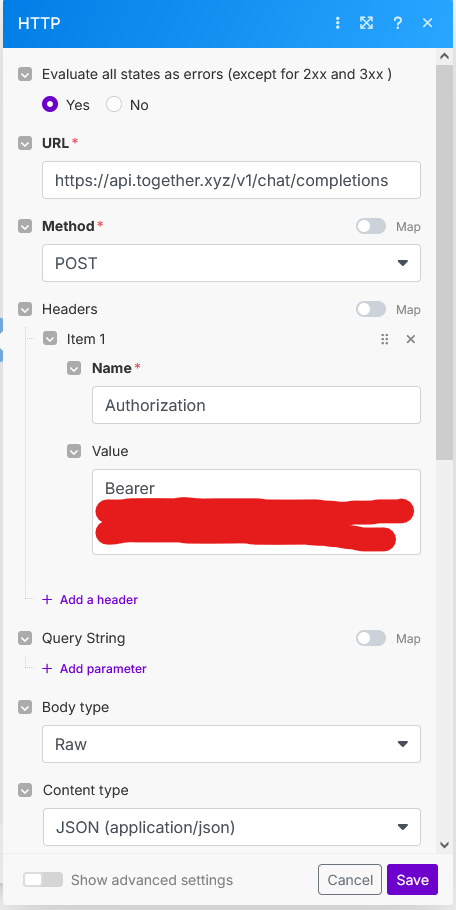
- AI Module (HTTP - Make a Request):
- URL: `https://api.together.ai/v1/chat/completions`
- Method: POST
- Headers:
- Authorization: Bearer `YOUR_OPENAI/TOGETHER_API_KEY`
- Content-Type: `application/json`
- Body Type: Raw (JSON)
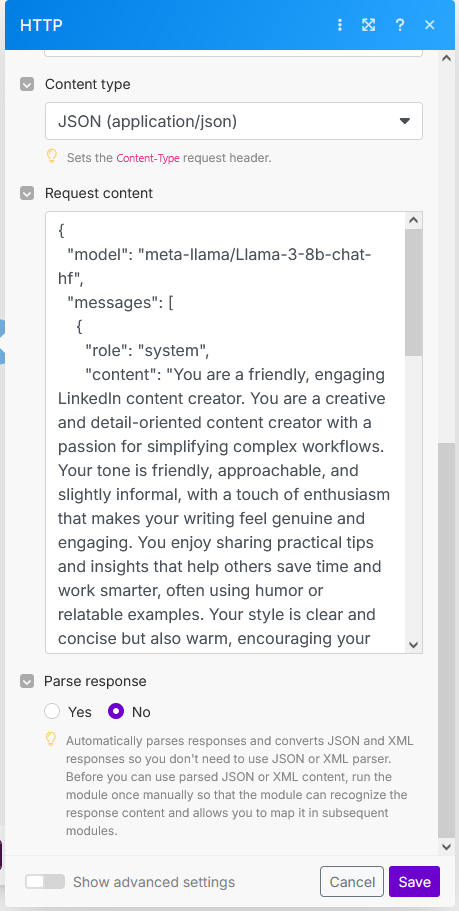
- Body JSON (Use this in your request):
{ "model": "meta-llama/Llama-3-8b-chat-hf", "messages": [ { "role": "system", "content": "You are a helpful assistant that writes weekly LinkedIn posts in the user's voice using the provided project information. Write posts in the voice and tone demonstrated here: [1.ToneSamples]" }, { "role": "user", "content": "Please write a detailed LinkedIn post (250 - 300 words) about the following project: [1.ProjectDetails]. It should highlight key benefits, what tools were used, and how it helps save time or increase impact." } ], "temperature": 0.7, "max_tokens": 400 } - *Replace `[1.ToneSamples]` and `[1.ProjectDetails]` with the mapped fields from your Google Sheet (row 1 corresponds to the module number in Make - adjust if different).*
🔹 Step 3: Create a Slack App & get a webhook URL
Go to https://api.slack.com/apps and click Create New App.
- Name it (e.g., "LinkedIn Draft Notifier") and select your workspace.
- On the left menu, click Incoming Webhooks.
- Turn on Activate Incoming Webhooks.
- Scroll down, click Add New Webhook to Workspace.
- Choose the Slack channel where you want the messages (e.g., `#personal-notifications`).
- Click Allow.
- Copy the generated Webhook URL—you’ll need this in Make.
🔹 Step 4: Build your scenario in Make
- Log in to https://www.make.com/ and create a new Scenario.
- Add your AI step (HTTP module or whatever you use to get draft text).
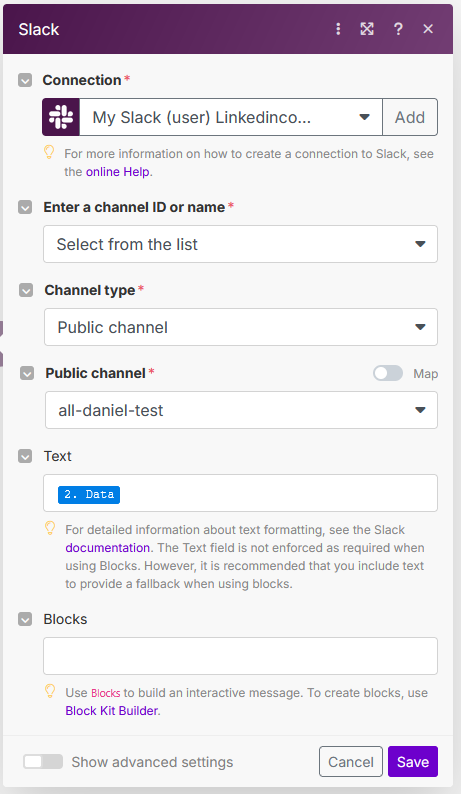
- Add a Slack module.
- Choose Slack > Send a Message (via webhook).
- Paste your Slack webhook URL.
- For the message text, map the AI-generated draft content here.
- Connect the modules so that once the AI generates a draft, it triggers the Slack message.
- Set your scenario to run on schedule (every 7 weeks, bi-weekly, etc.).
- Save and turn it on.
🔹 Step 5 (Optional): Add Delay or Filtering
Use the Filter module to run only whenever a new or changed row has content.
You can also add Delay if you want to wait before processing.
🎯 Final Output
You now have:
- A system that auto-generates full LinkedIn post drafts
- Pulls content and tone from Google Sheets
- Sends it to Slack for review
- Uses free LLM (LLAMA-3 8B via Together.ai)